Many analytics programs (e.g., Google Analytics 4) offer a feature to block IP addresses via a filter. Could this be the solution to all problems? Unfortunately, no.
This is because most IP addresses are dynamic, meaning they change throughout the day and therefore cannot be defined for the filter.
However, it is possible to purchase a static IP address from internet service providers. This is certainly a good solution for some companies—specifically those that insist on most employees working from the office. Yet, remote work and mobile offices have become an essential part of the professional world, and there is (fortunately) no sign of that changing.
So, if your company has many employees working in the same office, it can still be a good idea to pay for a static IP address for the office. Even if some employees work from home from time to time, the majority of internal website traffic will be blocked this way.
For Google Analytics 4, you can find here the internal filter instructions.
Side note: Keep an eye on your IP address! Some time ago, we had an issue where we were paying for a static IPv4 address (the old IP format), but our dynamic IPv6 address (the new IP format) was being transmitted to Google Analytics. Tough luck!
For those companies for whom this strategy is not an option—no need to worry. We have the ideal alternative solution.
In our opinion, the best way to block internal traffic is to install an ad blocker with custom filter rules for all employees who regularly interact with the company website.
Side note: If you want to block your traffic exclusively for Google Analytics 4, install this Google Analytics Opt-out Add-on (by Google).
Basically, the following method should work with most ad-blocking extensions. For our guide, we have chosen Adguard decided. Add the extension to your favorite browser and then follow the steps below to ensure that your traffic no longer appears in your own statistics in the future.
Once you have added Adguard to your browser of choice, first go into the extension settings to configure a few important basic settings.
Even though many people enjoy using an ad blocker, it can lead to some limitations when working with websites. Both developers and marketers know this all too well—for example, when all campaigns in a Google Ads account suddenly disappear and become invisible (oops!).
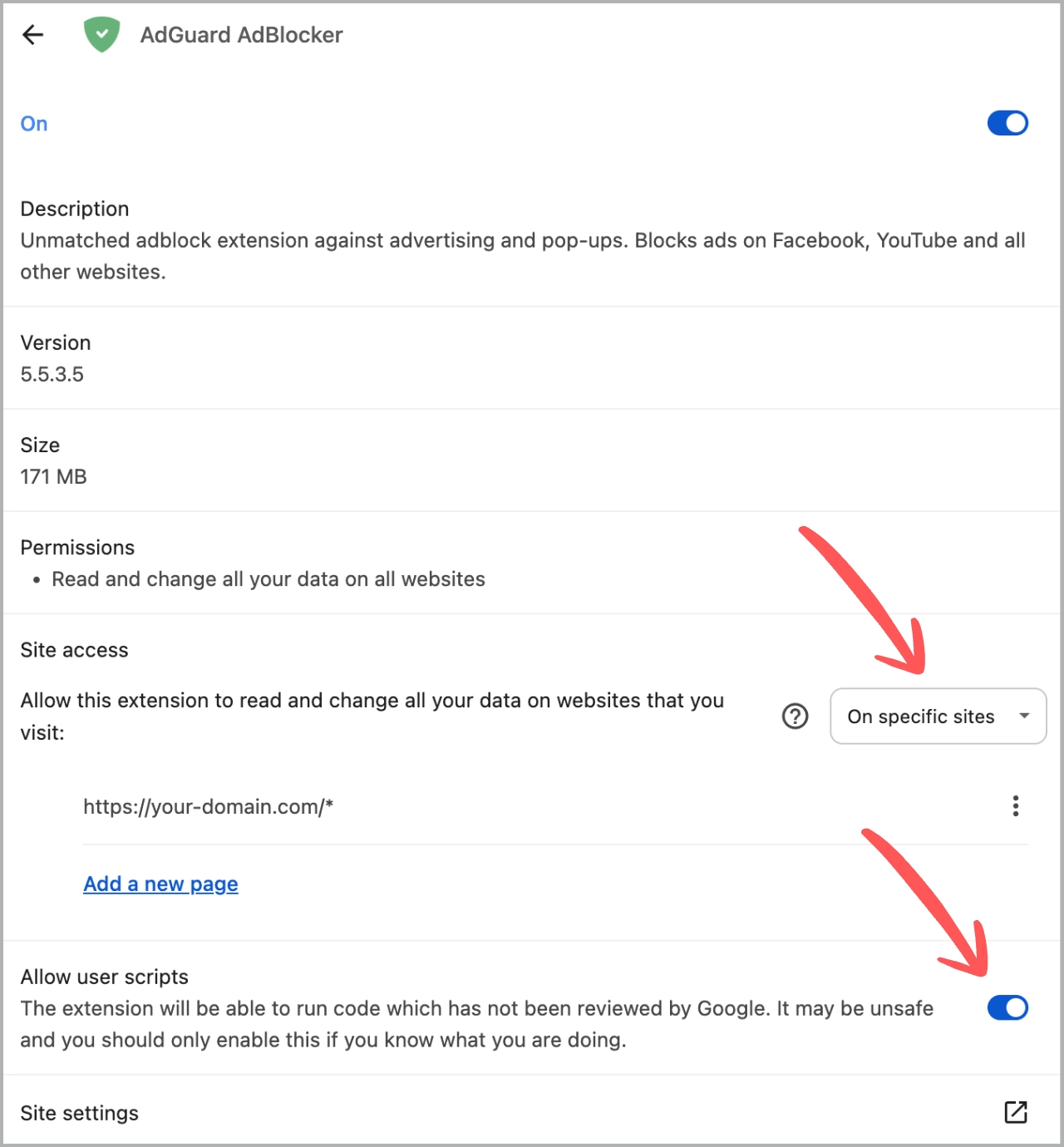
For this reason, we recommend giving the ad blocker access only to the sites where you want your own traffic to be filtered. You can adjust this in the extension settings under "Site access": select "On specific sites" and then enter your domain.
Furthermore, you must enable "Allow user scripts" in the Adguard extension settings for our method to work.
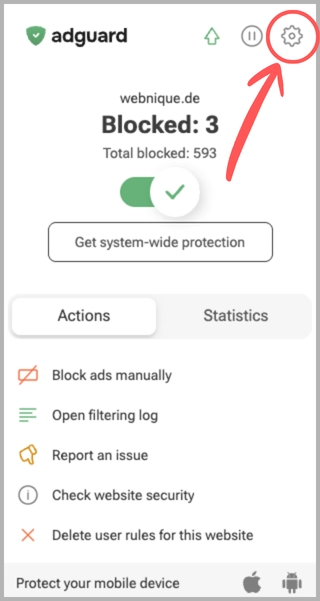
In the next step, click on the Adguard icon in your browser toolbar and use the gear icon to access the add-on's settings.
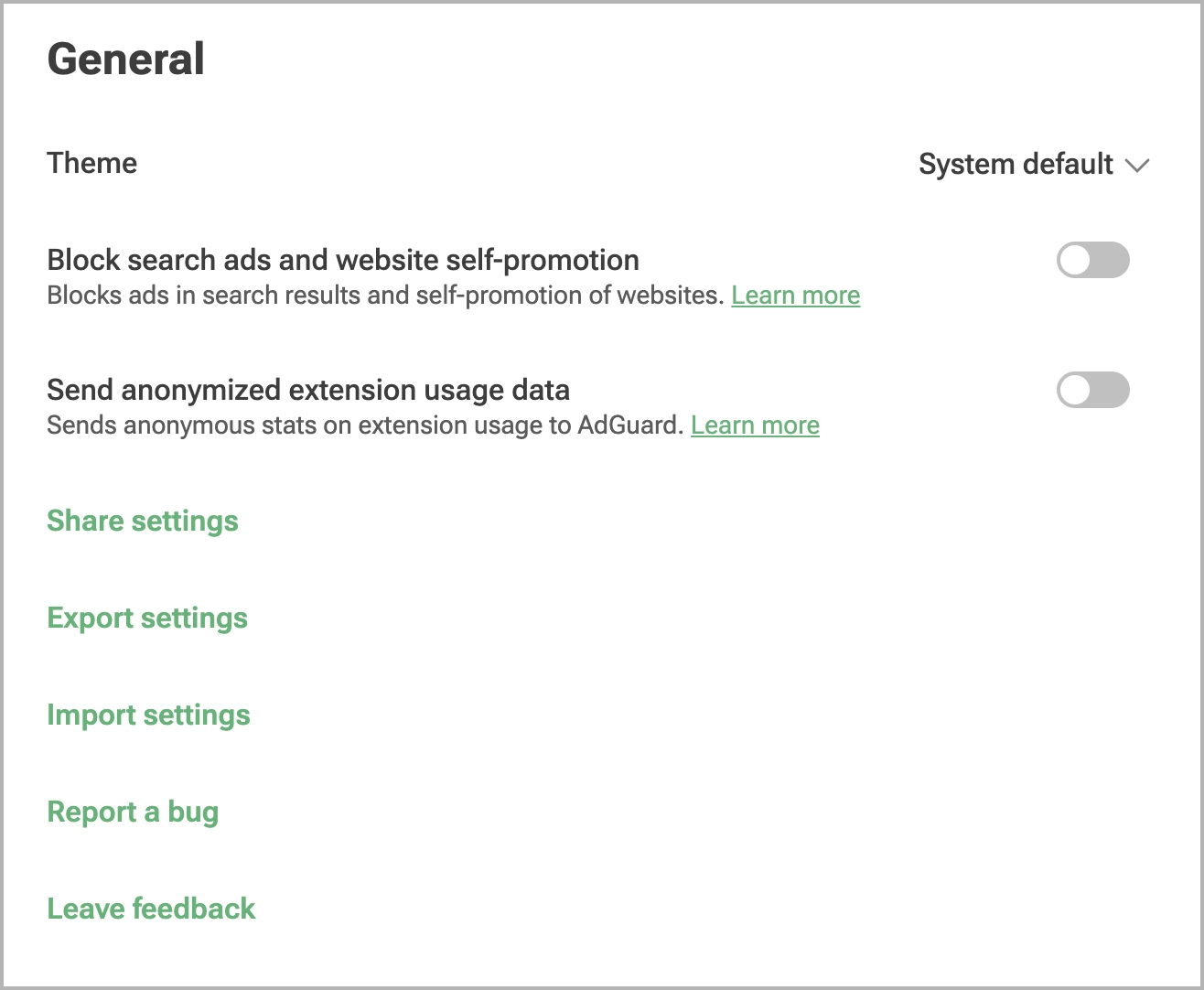
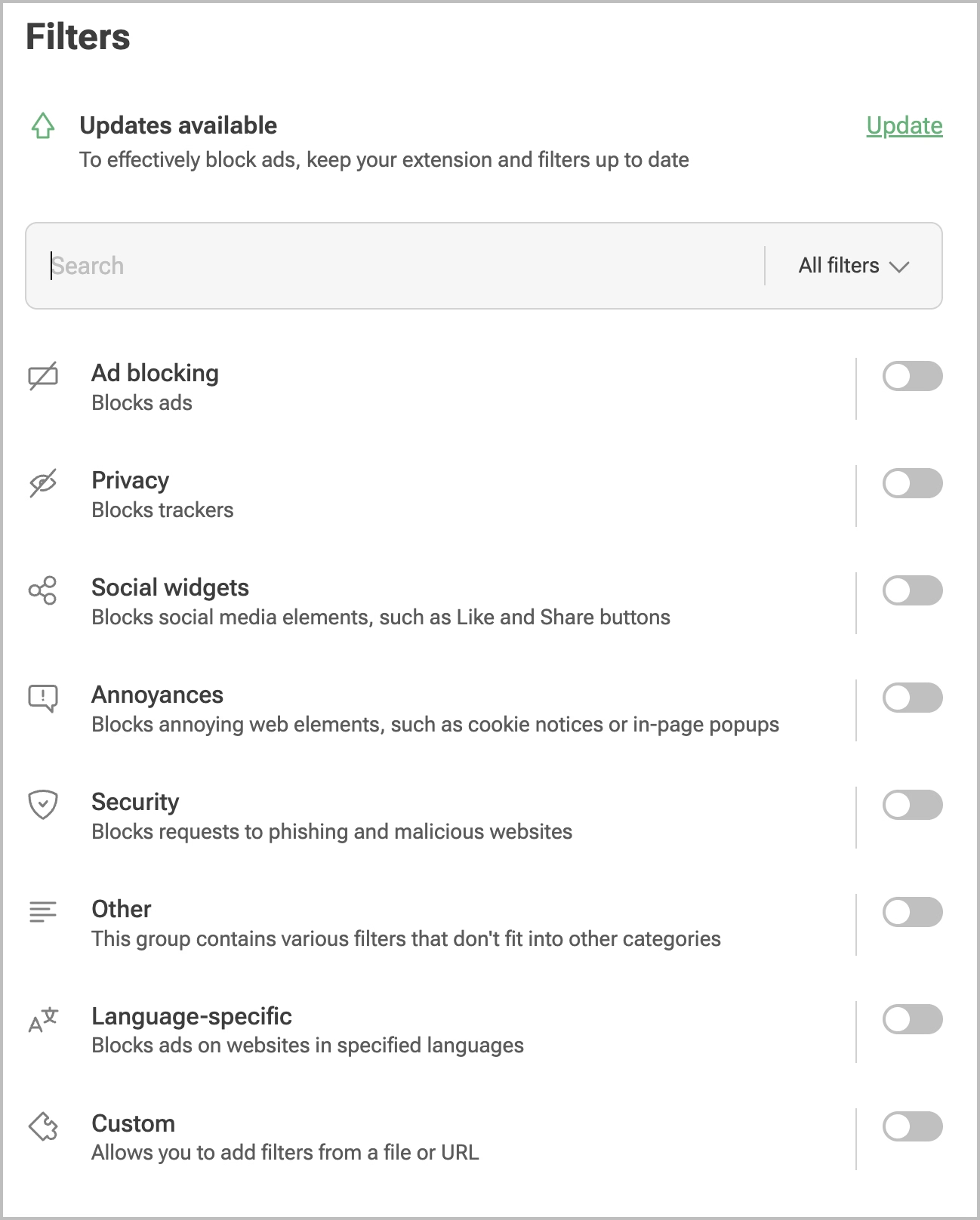
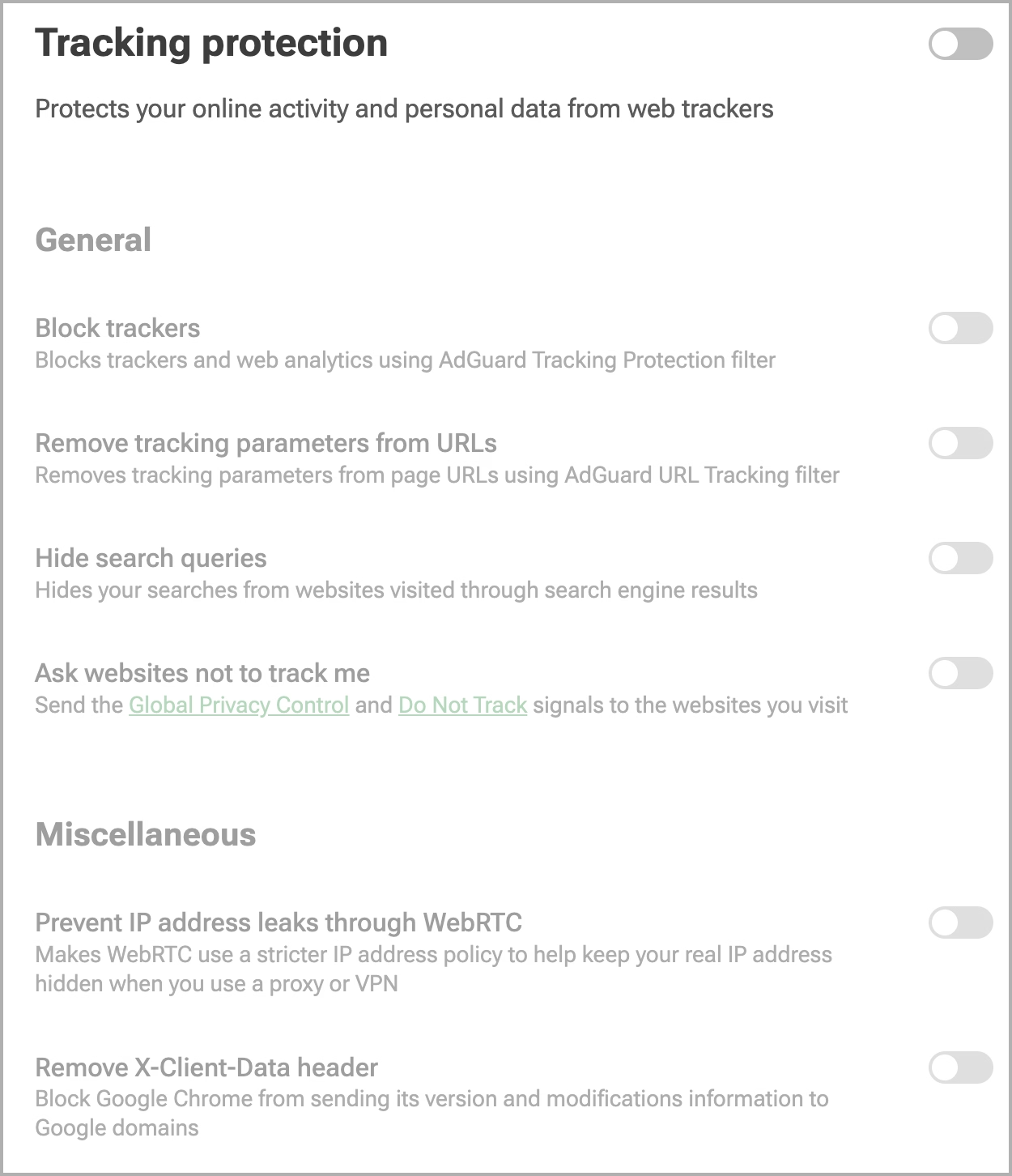
Disable all settings in the "General," "Filters," and "Tracking protection" sections. This will additionally turn off all automatic ad blocker functions.
Next, click on "User rules" in the menu on the left and save the following user rules into the text field that appears. Don't forget to replace yourdomain.com with your actual domain.
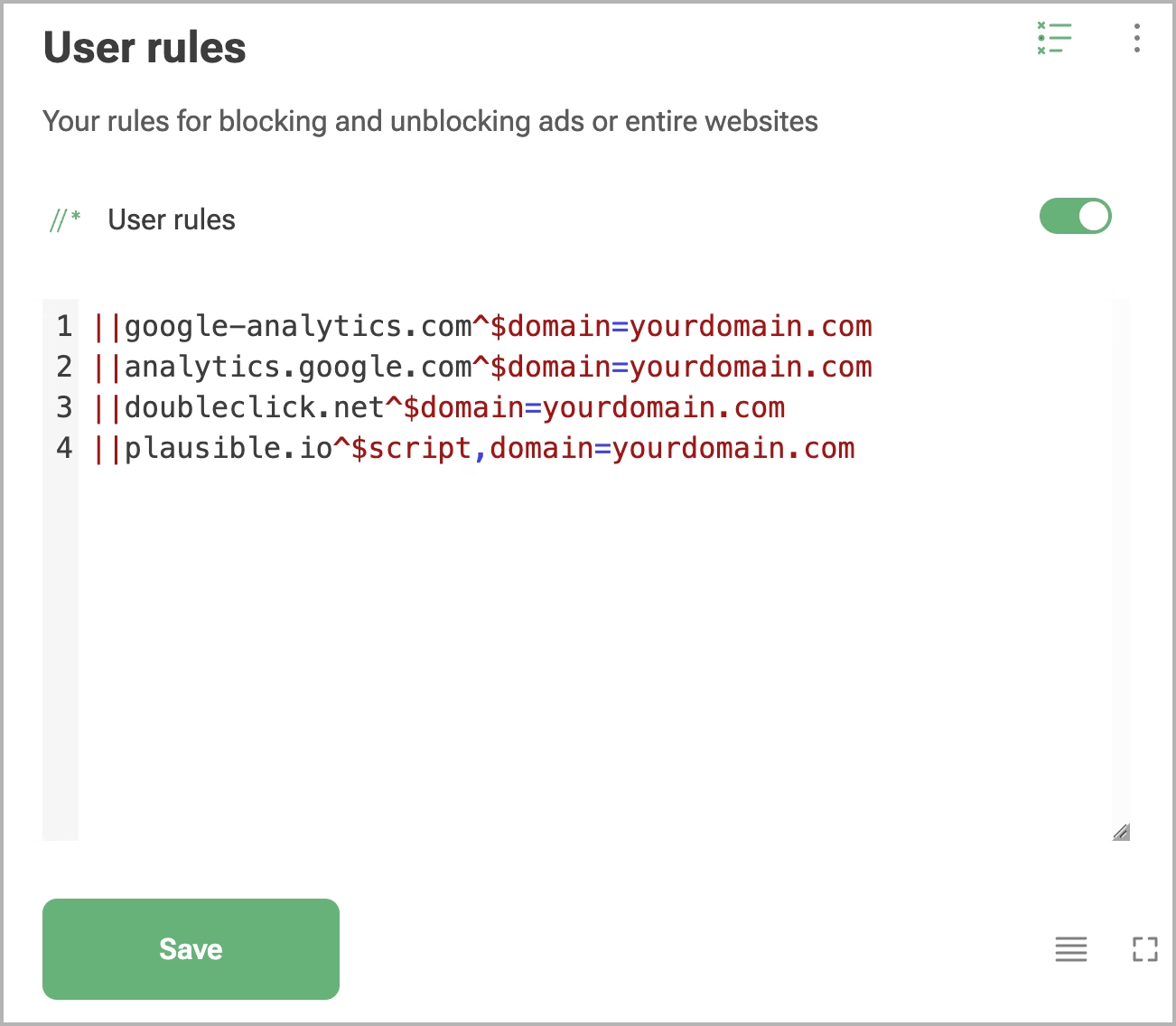
For Google Analytics:
||google-analytics.com^$domain=yourdomain.com
||analytics.google.com^$domain=yourdomain.com
For Google Marketing Platform:
||doubleclick.net^$domain=yourdomain.com
For Plausible Analytics:
||plausible.io^$script,domain=yourdomain.com
For Meta Pixel:
||facebook.net^$domain=yourdomain.com
For LinkedIn Insight Tag:
||licdn.com^$domain=yourdomain.com
For HubSpot Analytics:
||hs-scripts.com^$domain=yourdomain.com
||hs-analytics.com^$domain=yourdomain.com
For Mouseflow:
||mouseflow.com^$domain=yourdomain.com
For Abtasty:
||abtasty.com^$domain=yourdomain.com
For Hotjar:
||script.hotjar.com^$domain=yourdomain.com
||static.hotjar.com^$domain=yourdomain.com
For Pinterest Web Analytics:
||pinterest.com^$domain=yourdomain.com
For Microsoft Clarity:
||clarity.ms^$domain=yourdomain.com
Side note: If you happen to have more than one domain from which you want to exclude your traffic, you don't need to set the filter again for each domain. Simply separate the domains with a vertical bar. For example: ||licdn.com^$domain=yourdomain.com|your-second-domain.com|your-thrid-domain.com
Here is how to test if your newly configured filters are working:
First, visit your website, then click on the AdGuard icon and select "Open filtering log".
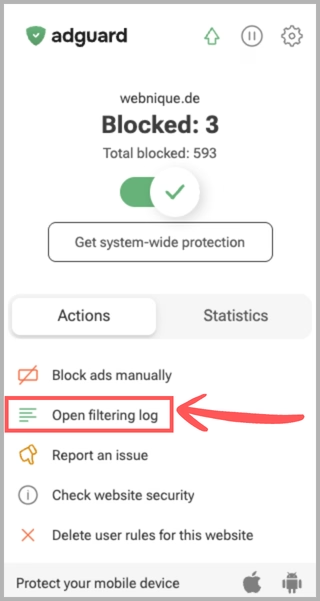
If your filters are working, the request URLs you want to block should be highlighted in red in the filtering log.

And that's it. Now you can scroll through your website to your heart's content without your own traffic skewing your statistics.